
Claim and verify all listings with a domain email
We all know how to claim and verify a Google listing, but many don’t realize that the account you use to claim and verify a listing is really important.
The email you use signals Google that you are authorized to manage this business profile and can simplify the verification process and future changes. For this reason, always try to use a domain-level branding email when claiming or verifying a listing.
If your listings are already claimed, review them for unwanted users and remove any unnecessary ones. You want as few users as possible to have direct access to individual profiles.
My recommended setup is to have one domain email as the primary owner on all individual lists and then add another domain email as the backup owner. To give other users access to manage the board, I recommend using company groups.
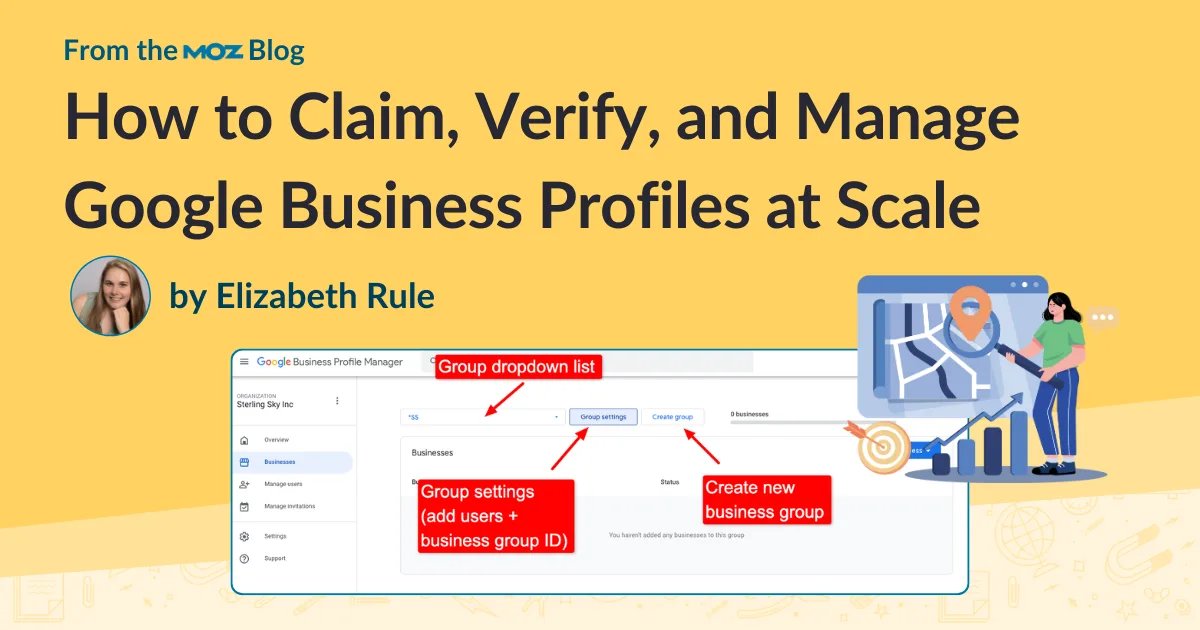
How to use business groups in GBP
Business groups they are Google’s solution that offers agency accounts the ability to simplify and more easily manage user access to adverts. When you first set up an agency account, we recommend organizing all the lists you have access to into business groups. You can organize them however you like, based on the setup of your business.
For example, if you manage ads for multiple brands, you can organize groups by brand. If they all belong to a single brand, you can organize them by location instead. For franchises where multiple locations may be owned by the same person, you can create a separate group for that franchisee and grant them access to all of their locations by adding them to the group. You also have the option to keep all positions in one group. Ultimately, it comes down to your preferences and how you want to delegate user access.
The main function of enterprise groups is to simplify user access management. Instead of adding users directly to individual lists, you can grant them access at the group level. This way, users can manage multiple lists at once without having to be added to each one individually.
You can add as many users as you want to each group. Make sure these users don’t send mass emails or make changes to Google Maps with the email address linked to the group. If they the user account is restricted by Googlemay cause all group positions to be suspended.